


🧭 Module 1: Apps and Applications
🎯 Objective
To understand the concept of software applications, identify their types, and learn how to install, launch, and use basic applications on computers and mobile devices.
📖 1. Definition of Apps and Applications
🔹 What is Software?
Software refers to the set of programs, instructions, or data that tell a computer or device what to do.
Without software, hardware cannot perform any useful task.
🔹 What is an Application (App)?
An application or app is a type of software designed to help the user perform specific tasks such as writing documents, playing music, sending emails, or browsing the web.
📱 Examples:
- Mobile apps: WhatsApp, Facebook, Instagram, Calculator
- Desktop applications: Microsoft Word, Excel, Photoshop, VLC Player
💡 Note:
The word “app” is short for “application.” It usually refers to software designed for mobile devices like smartphones and tablets, while “application software” often refers to programs on computers.
🧩 2. Types of Software
Software is generally divided into two main types:
🖥️ A. System Software
System software controls and manages the hardware and basic operations of a computer.
It serves as a platform on which other applications can run.
Examples:
- Operating Systems (Windows, macOS, Linux, Android)
- Utility Programs (antivirus, file management tools, backup software)
- Device Drivers (printer drivers, display drivers)
Functions of System Software:
- Controls hardware components
- Provides an environment for running applications
- Manages memory and system resources
🧮 B. Application Software
Application software allows the user to perform specific, real-world tasks such as creating documents, editing photos, managing data, or browsing the internet.
Examples:
- Word processing: Microsoft Word, Google Docs
- Spreadsheet: Microsoft Excel
- Web browser: Google Chrome, Mozilla Firefox
- Database management: MySQL, MS Access
- Media players: VLC, Windows Media Player
Functions of Application Software:
- Helps users perform tasks easily
- Enhances productivity and communication
- Provides tools for business, education, and entertainment
🏢 3. Common Applications in Business and Education
💼 Business Applications
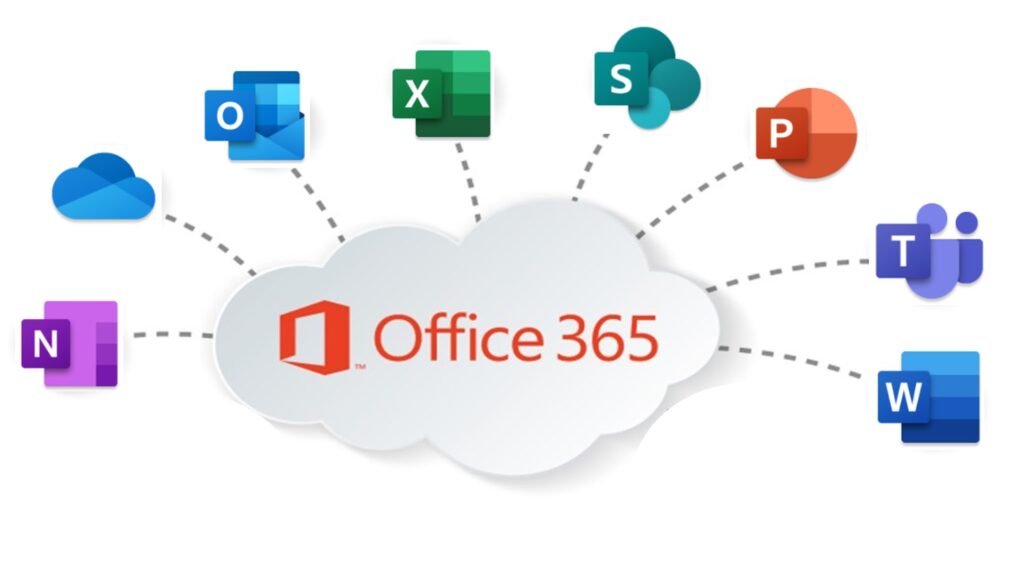
- Microsoft Office Suite – Word, Excel, PowerPoint for documents and reports
- QuickBooks / Tally – Accounting and financial management
- CRM Systems (Customer Relationship Management) – Managing clients and sales
- Email & Communication Tools – Outlook, Slack, Zoom
🎓 Educational Applications
- Google Classroom / Moodle – Online learning and assignments
- Microsoft Teams / Zoom – Virtual classes and meetings
- Typing Tutors – Improve keyboarding skills
- Educational Games / Simulations – Interactive learning
⚙️ 4. Installation and Launching of Applications
🔹 Installing an Application
Installation means adding a new program to a computer or mobile device so that it can be used.
There are different ways to install applications:
On a Computer (Windows/Mac):
- Download the setup file (e.g.,
.exeor.dmg). - Double-click the file.
- Follow the on-screen installation instructions.
- After installation, find the shortcut on the desktop or in the Start menu.
On a Mobile Device:
- Open Google Play Store (Android) or App Store (iOS).
- Search for the app name.
- Tap Install (or Get).
- Wait for installation to complete.
🔹 Launching an Application
Launching means starting or opening a program to use it.
- On computers: Double-click the program icon or open it from the Start menu.
- On phones: Tap the app icon on the home screen.
🔹 Exploring Basic Application Functions
Once opened, applications usually have:
- Menu bar / Toolbar: Contains options and tools.
- Workspace: The main area for working (e.g., typing, drawing, editing).
- Save / Exit: Allows you to save work and close the app safely.
🧠 Key Points Summary
| Term | Meaning | Example |
|---|---|---|
| Software | Set of programs that tell the computer what to do | Windows, Android |
| Application | Software designed for specific user tasks | MS Word, WhatsApp |
| System Software | Manages computer hardware and provides platform | Operating System |
| Application Software | Helps users perform specific functions | Google Chrome |
| Installation | Adding software to a device | Installing Zoom |
| Launching | Opening the software for use | Clicking MS Word icon |
💻 Practical Activities
✅ Activity 1: Identifying Applications
- List 5 applications found on your computer or phone.
- Classify each as system or application software.
✅ Activity 2: Installing a Simple Application
- Download and install a text editor (e.g., Notepad++, Sublime Text).
- Observe the installation process and shortcut creation.
✅ Activity 3: Launching and Exploring
- Open the installed text editor.
- Type a short message and save it as a file.
- Explore the File, Edit, and View menus.
🏁 Conclusion
Applications are at the core of how we use digital devices daily — from typing documents to managing businesses or studying online.
Understanding how to identify, install, and use these tools builds the foundation for all future computing skills.